Developers
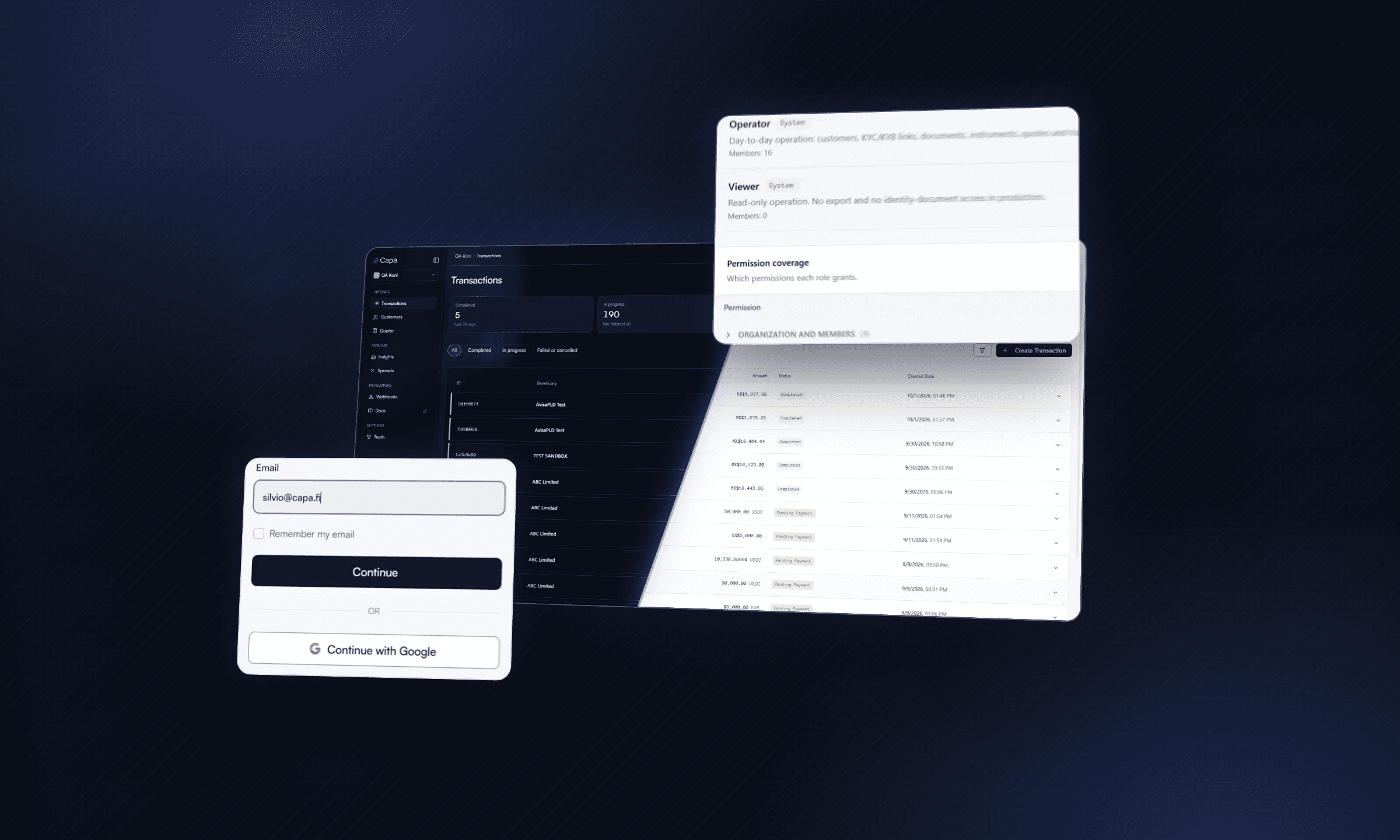
On Tuesday, November 3, we’re updating the Capa Partner Dashboard. The biggest change is how you log in: instead of a one-time code sent by email, you’ll now log in with your email and a password.
New day-to-day features are also coming: an Insights page with your volume and activity, a security section in your profile, light and dark mode, and a button to send us feedback without leaving the dashboard. Here’s what each one does.
You now log in with email and password
The password replaces the code you currently get by email every time you log in. It’s more secure, and you no longer have to wait for an email to start working.

Since it’s a new system, you’ll need to create your password the first time:
Go to dashboard.capa.fi.
Enter your work email and click Continue.
On the next screen, click Forgot your password?
We’ll send you a code by email. Enter it and choose your new password.
Log in with your email and your new password.
You only do this once. After that, you always log in with your password.
Use the same email we have on file. If you currently log in with Google, Continue with Google still works with that same email. And if the code doesn’t arrive, check your spam folder.
You can now customize your team’s permissions
We’ve expanded the Team section so you can control what each person on your team can do in the dashboard. There are four default roles: Admin, Developer, Operator and Viewer. If none of them fits what you need, you can create custom roles.

There’s now a profile section
Open your profile from your user menu in the bottom left. At the top you’ll see your email, your role on the account and the method you used to log in to your current session. Below that is Security, where you decide how you log in to your account:
Password: add it here if you don’t have one yet. We’ll send you a code by email to confirm it.
Authenticator app: adds a 6-digit code as a second step every time you log in with your password.
Passkeys: log in and confirm sensitive actions with Face ID, your fingerprint or your device PIN. They work alongside your password and Google.
Google: connect or disconnect the Google account for your work email.
Sessions: log out of all your devices in one click, for example if you lost your laptop.

There are two rules worth keeping in mind. You can only remove a login method if you have another one that works, so you’re never locked out of your account. Also, each account uses either a passkey or an authenticator app, not both: if you turn on the app, passkey login is turned off.
We recommend turning on one of the two as soon as you create your password. Look for the Protect your account option. It takes a minute and protects you if your password is ever leaked.
Insights: your operation on one page
In the side menu, under Analyze, you’ll find Insights. At the top there’s a card for purchases (Buy), one for sales (Sell) and one for cross-border. Each one shows volume, number of transactions, revenue and average ticket for the last 30 days, 90 days or 12 months.

Below that is the transactions chart. You can view it by volume, revenue, number of transactions or average ticket, and filter it by operation type and time period.
Further down you’ll find the details:
Success rate: what percentage of your finished transactions were completed and, if any failed, the most common reasons.
Volume by currency: how your completed volume is split across fiat currencies.
Customers: who moves the most volume, revenue or transactions, with their recent trend.
Time to complete: how long a transaction takes to complete, at the median and the 90th percentile.
Light or dark mode
In the top bar, next to Go to sandbox, there’s an icon to change the dashboard’s theme. Choose whichever is most comfortable for your screen or for the time of day you work.

Send us feedback from the dashboard
At the bottom of the side menu is the Send feedback button. Choose whether it’s a bug, an idea, a question or something you liked, write your message and send it. We read every message.

If you allow it, we attach the page you were on, your role and your browser so we can reproduce the issue. We never include passwords or keys. You can also tell us whether you’d like us to contact you about your message. For anything urgent, email feedbacks@capa.fi
What’s not changing
Your API keys, webhooks and integrations keep working the same way. You don’t need to do anything on the technical side.
Questions or trouble logging in? Email us at support@capa.fi and we’ll help you.